Duty manager: from opening to validation
The duty manager (an instructor or a pilot designated "duty manager") runs the day in the Planche: opens it, organises attendance and machines, follows flights, validates them and closes the Planche. Everything happens in the member portal, Planche management tab, or on the field tablet.
Who can open the Planche?
Any instructor or duty manager. Only today's Planche can be opened: opening another day (catching up) is reserved to Planche administrators.
1. Open the Planche
- Go to Planche management and pick the airfield.
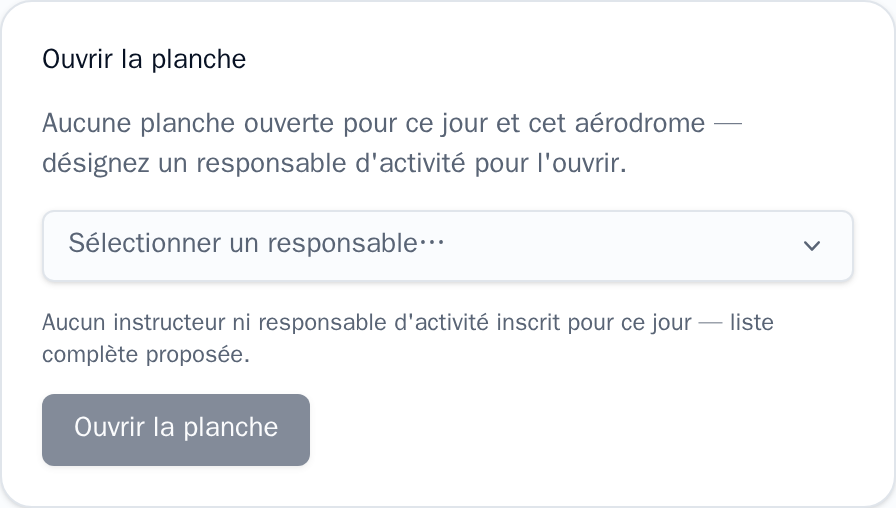
- If no Planche is open for today, the Open the Planche panel shows up.
- Pick the day's duty manager. The list only offers instructors and duty managers signed up for the day on Click & Glide; if nobody eligible signed up, the full list is offered (a message says so).
- Click Open the Planche.
On opening, the Planche imports the day's Click & Glide sign-ups into attendance, adds the duty manager as present and, if the field is equipped, starts OGN tracking. Pilots can now declare their flights.
2. Organising the day: attendance and assignments
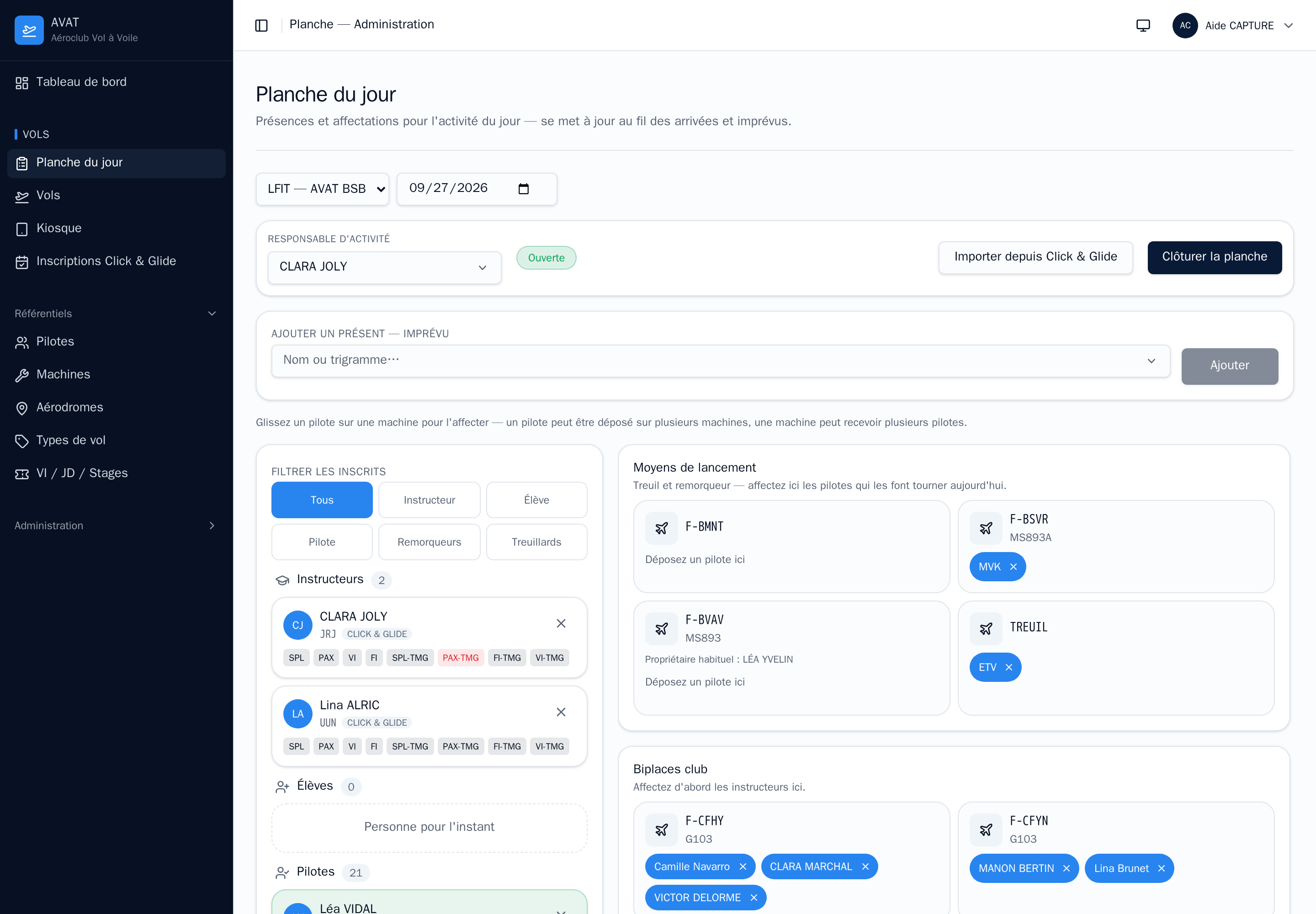
Attendance & assignments tab:
- Present: the day's pilots. Re-import Click & Glide, add a pilot by hand, mark them left or excluded. Only present pilots are offered in the flight forms.
- Roles: instructor, student or autonomous; a student can be linked to an instructor.
- Machines: assign machines to present pilots (drag and drop). A glider assigned to a pilot is preselected when they declare a flight.
- Launch crews: the day's teams — which winch with which operator, which tow plane with which pilot. Without an assigned winch or tow plane, that launch method isn't offered.
- Duty manager: can be changed during the day, among the present instructors and duty managers.
3. Granting ratings on the spot
Ratings tab: the duty manager can grant a missing rating on the spot (tow, winch, passenger…) to unblock a pilot, without waiting for the administrator. The grant is logged (who, when).
4. Following the day's flights
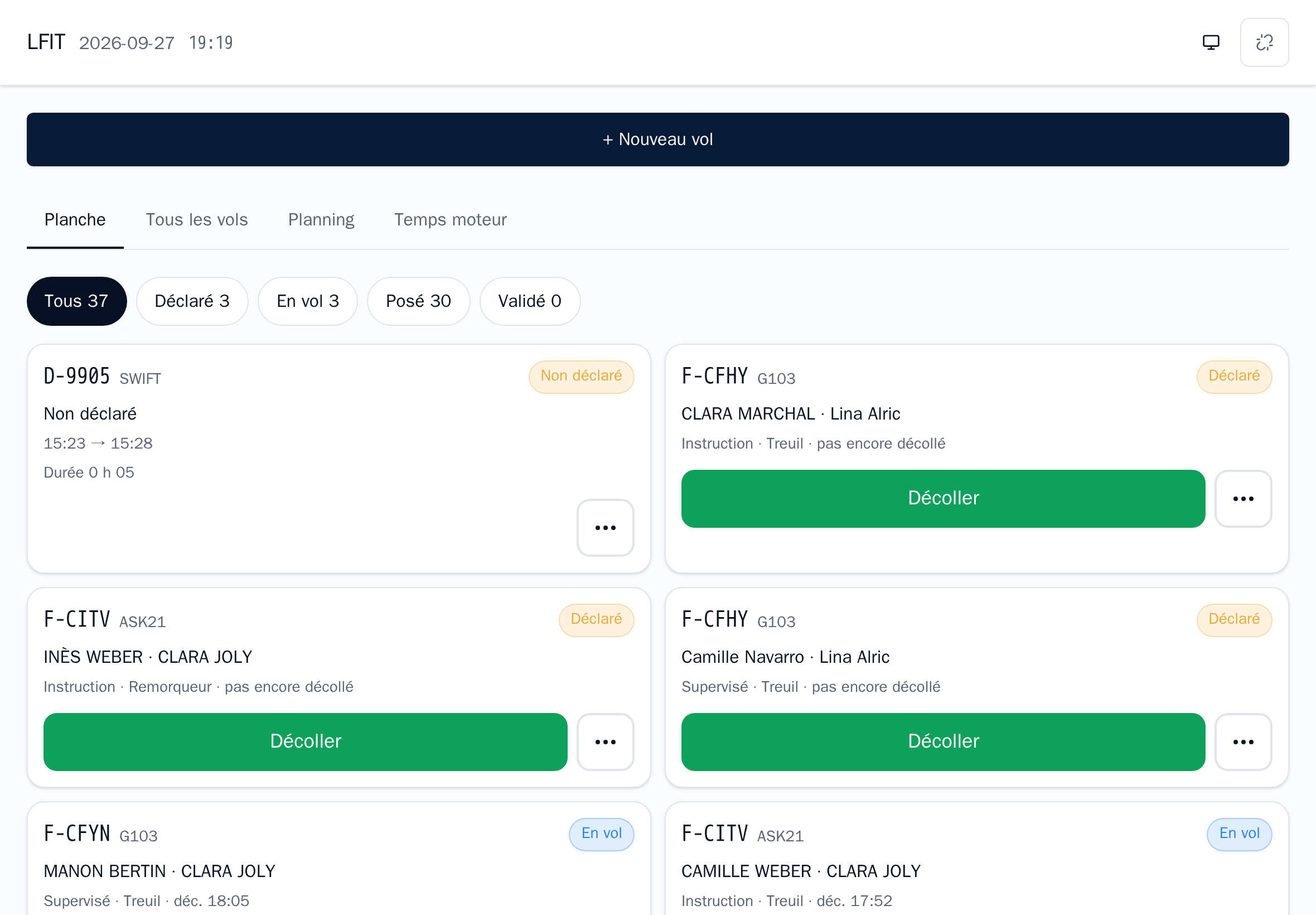
Flights are declared on the kiosk or the pilots' phones (see Managing flights). The duty manager keeps an eye on the Planche tab: declared, airborne, landed flights.
- A forgotten flight can be declared on the pilot's behalf.
- A flight detected by OGN but not declared shows up to be completed.
- Engine times (TMG, plane, tow plane) are followed in the Engine time tab: a powered flight without engine time stays incomplete.
5. Validating flights
A landed flight can first be certified by its pilot ("my data is correct"). Depending on the club's setting, certification may be required before validation.
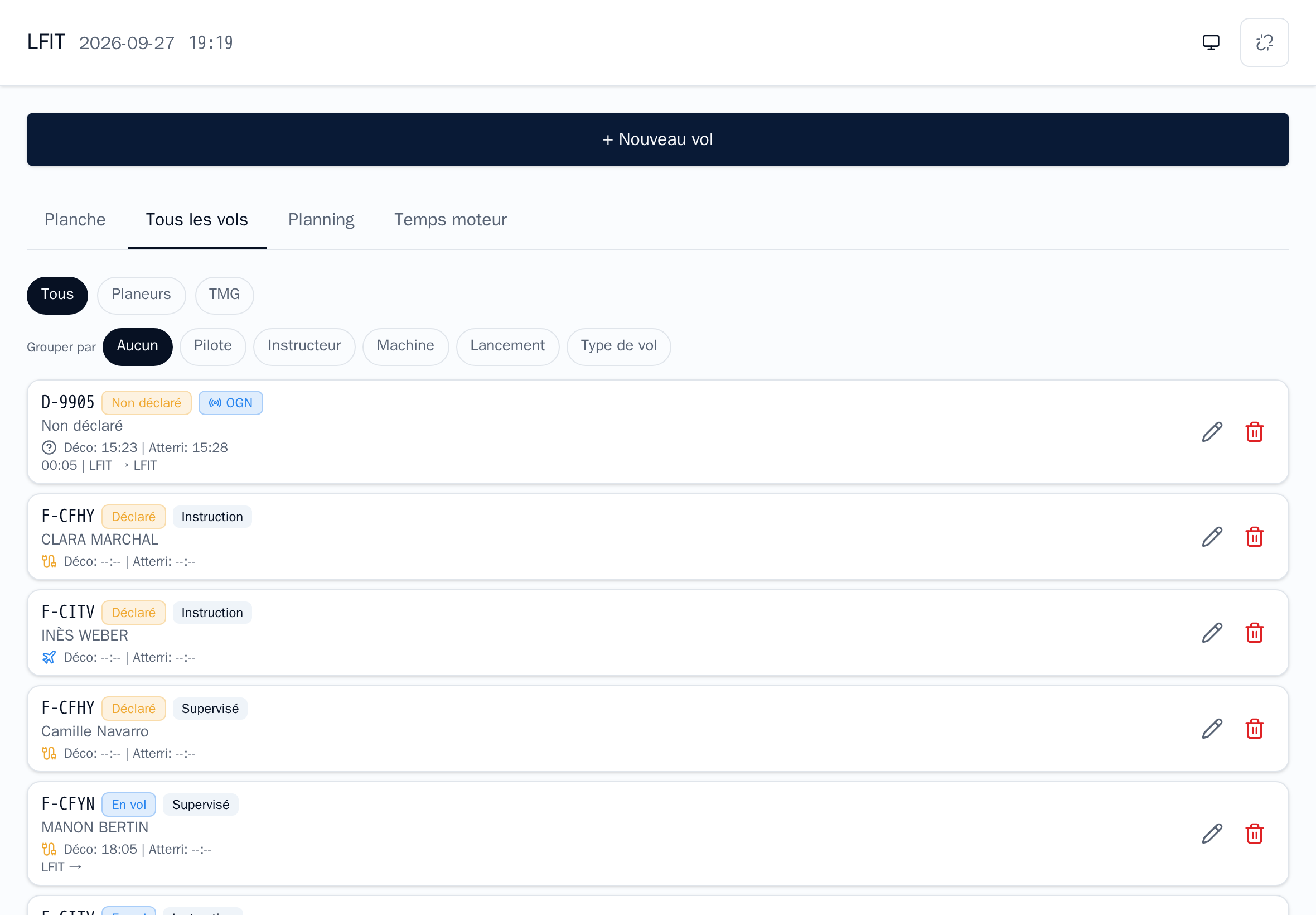
The duty manager validates flights from the All flights tab:
- one at a time, opening the flight and clicking Validate;
- or all at once (Validate all): complete flights are validated, incomplete ones (missing engine time, unknown pilot…) are skipped and left to fix.
A validated flight is locked and sent to the ERP for billing. To correct an already validated flight, the duty manager enters a reason — possible until the flight has been transferred to the ERP; after that, the correction is made in the ERP.
6. Closing the Planche
At the end of the day, once flights are validated, click Close the Planche. A closed Planche can be reopened the same day if something was forgotten. A Planche left open is closed automatically overnight (club setting).
Summary
| When | Where | Action |
|---|---|---|
| Arrival | Planche management | Open the Planche, set the duty manager |
| Morning | Attendance & assignments | Present pilots, machines, launch crews |
| During the day | Planche, Engine time | Follow flights, complete missing ones |
| End of day | All flights | Validate (one by one or all at once) |
| Leaving | Planche management | Close the Planche |