VI booking slots
Slots are the time ranges the club opens so that voucher buyers choose their own flight date. This guide explains the principle, then the club's actions, then what the buyer sees.
Where: VI & HelloAsso › Créneaux. Right: Plan VI flights (view: View VI). Type and e-mail configuration is in Setting up a VI voucher type.
The principle in five lines
- The club opens slots: a date, a start time, a length, a maximum number of vouchers.
- The buyer opens their personal link (received by e-mail) and sees the free slots of the coming weeks.
- They request a date (or book it directly if the slot is already validated).
- The club validates the slot at the latest 7 days before: requests are confirmed, vouchers receive their date.
- Once the slot is validated, Planche sees the vouchers; before that, Planche sees nothing.
The club stays in control
A request holds no place and is not a booking until the club confirms it. Only a slot that is already validated with a free place confirms immediately. Weather remains a reserve: a slot can always be cancelled, the vouchers are then released and not used up.
The three kinds of slots
| Slot | For whom | Visible to the buyer | Validation |
|---|---|---|---|
| VI | Introductory-flight vouchers | Yes | Before D-7 |
| Discovery day (JD) | Discovery-day vouchers (whole day) | Yes | Before D-7 |
| Internal | All types, groups and courses included | No, club only | Immediate: vouchers placed go to Planche at once |
A voucher is only placed in a slot of its type (VI in a VI slot, JD in a JD slot). The same day can have a VI slot, a JD slot, or both. There is no management of instructors or machines: you open a capacity as a number of vouchers, that is all.
A voucher bought at the last minute
Drag it onto a day without a slot: the application automatically opens an internal slot, validated right away. The voucher gets its date and goes to Planche.
Opening slots
Open slots button:
| Field | Detail |
|---|---|
| Type | VI, discovery day or internal |
| One-off / Recurring | One date, or a series (weekdays, period, excluded dates) |
| Start time | For example 9:30 |
| Length | Free, 2 to 8 hours (3 h suggested for a VI, 8 h for a JD) |
| Maximum number of vouchers | Capacity entered by the club (1 to 50) |
| Note | Free, for example "Meet at hangar 2" |
The preview lists what will be created and flags dates that already have a slot of that type (they are skipped). A slot cannot be opened on a past date.
Example: every Saturday and Sunday from May to September, 9:30, 3 h, 6 VI maximum, except 14 July → Recurring, Saturday + Sunday, period May–September, excluded date 14 July.
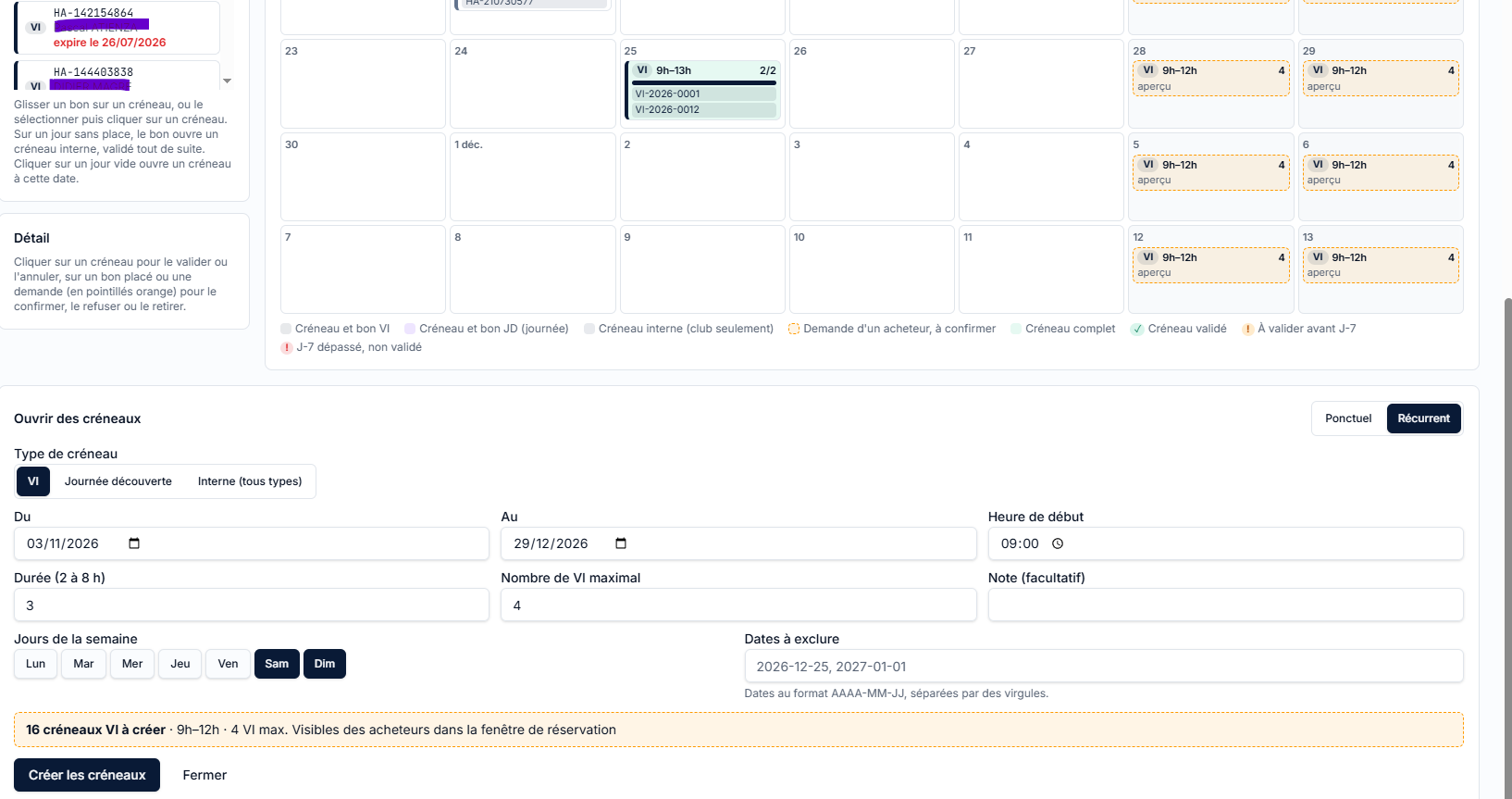
Open slots appear to buyers within the booking window (30 days by default). Outside the window, nothing is visible.
Reading the calendar
Each slot shows its type, time, filling ("4 / 6 places") and state.
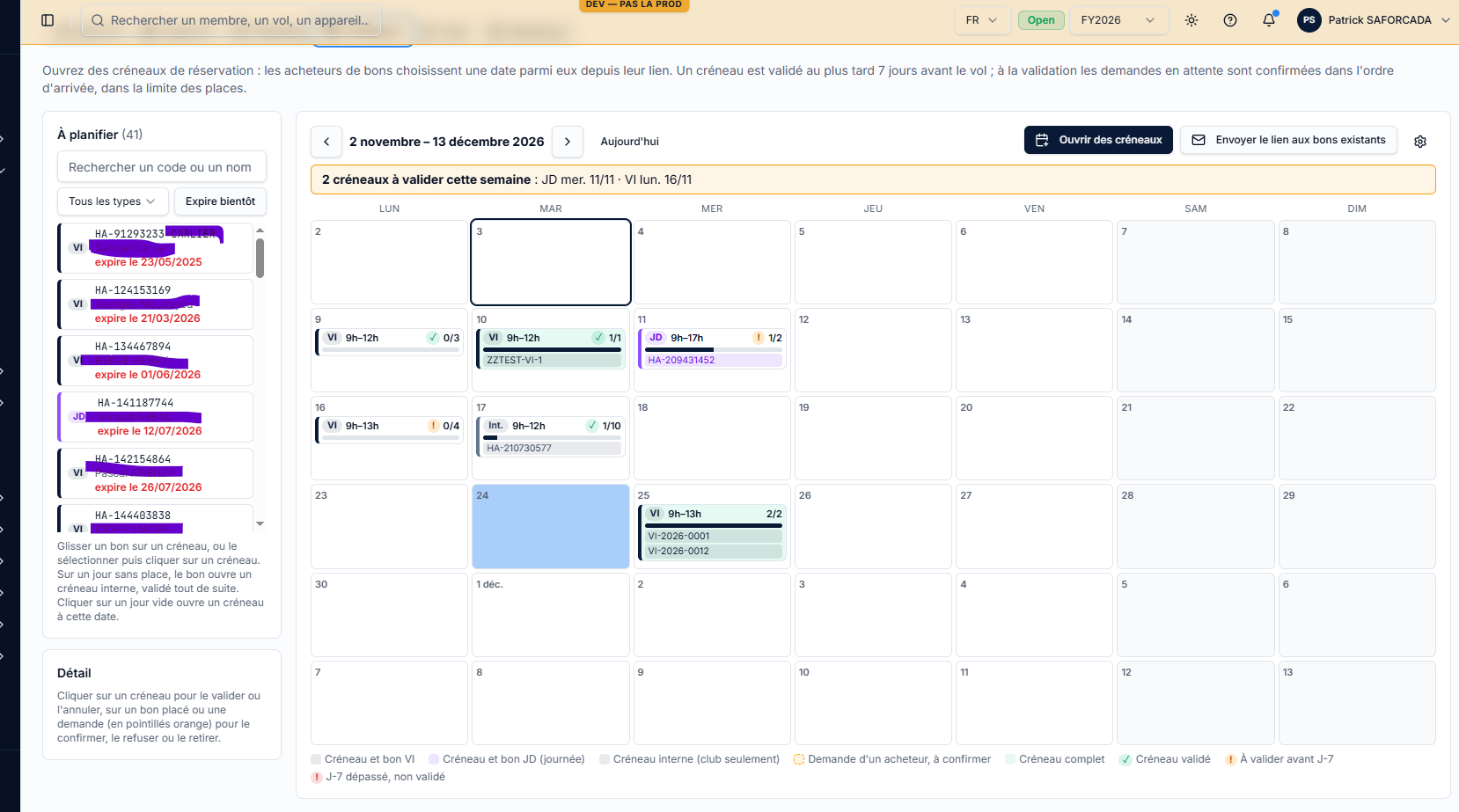
| Colour or marker | Meaning |
|---|---|
| Internal / VI / JD | Slot type (border colour) |
| Request (orange dashes) | A buyer requests this slot: to confirm or refuse |
| Full | The maximum number of vouchers is reached |
| Validated | Confirmed vouchers are visible to Planche |
| To validate before D-7 | Validation deadline close |
| D-7 passed, not validated | Red marker: handle it now |
A banner "N slots to validate this week" reminds you what is left to do.
The club's actions
Clicking a slot opens the Detail panel on the right.
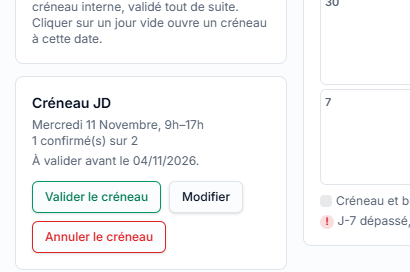
Placing a voucher
- Drag and drop a voucher from the "To plan" list (left) onto a slot, or select it then click the slot. Vouchers expiring soon are flagged.
- Automatic checks: voucher of the slot's type, not expired before the slot, place available. Otherwise a message explains the refusal.
- In a slot not yet validated, the voucher is placed "pending": it goes to Planche when the slot is validated. In a validated or internal slot, it is visible to Planche at once.
Validating a slot
Validate the slot button (at the latest 7 days before):
- pending requests are confirmed in order of arrival, within the places available; the others are refused (the voucher goes back to "to plan");
- placed vouchers receive the slot's date and become visible to Planche (status Planned);
- the buyer receives their e-mail (the Reminder if that mode is automatic, otherwise the standard confirmation).
Confirming, refusing or removing a voucher
In the Detail panel: on a request, Confirm or Refuse (even before the slot is validated, for an isolated request); on a placed voucher, Remove from the slot (the voucher goes back to "to plan").
Editing a slot
Edit button: start time, length, maximum number of vouchers and note.
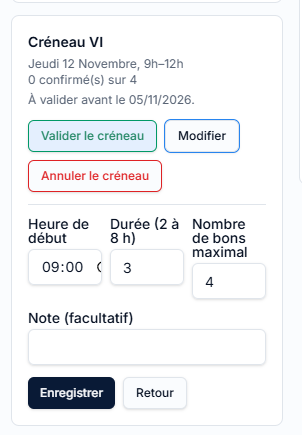
- The maximum cannot go below the number of vouchers already placed.
- Two slots of the same type cannot start at the same time on the same day.
- A cancelled slot can no longer be edited.
- Buyers already confirmed are not notified of a change of time: contact them directly.
Cancelling a slot
Cancel the slot button: placed vouchers are released, pending requests are cancelled, and each buyer receives an e-mail ("your voucher stays valid and is not used up"). Not possible if a placed voucher has already flown.
Sending the link to vouchers already sold
Send the link to existing vouchers button:
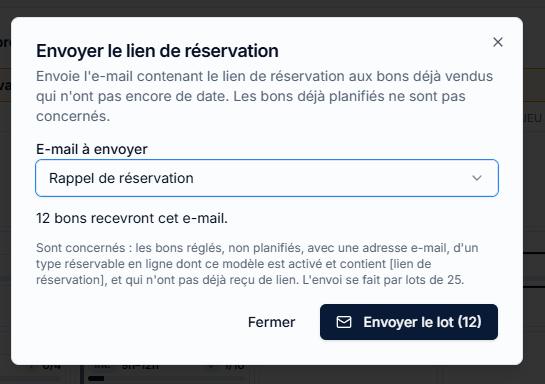
- Choose the message to send (instructions or booking reminder).
- The application counts the recipients: paid, unplanned vouchers with an e-mail address, of a type bookable online, whose message is active and contains
[lien de réservation], and which have not already received a link. - Confirm: sending goes in batches of 25. The result shows sent, failed and remaining; run again for the next batch.
Vouchers already planned for a date are not concerned.
Booking settings
Cog icon on the slots screen. These rules apply to all online bookings.
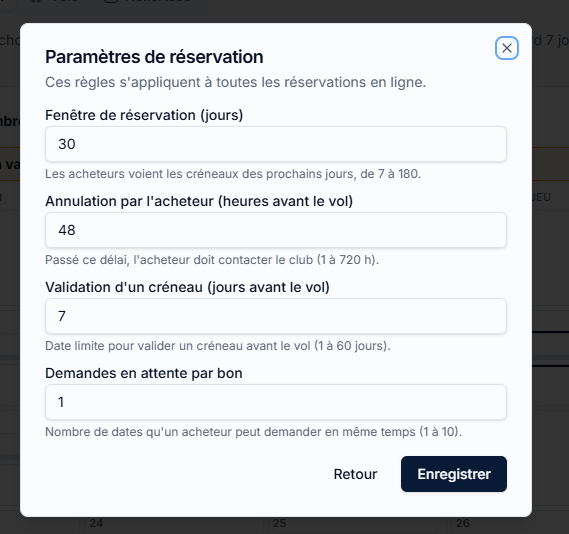
| Setting | Default | Effect |
|---|---|---|
| Booking window | 30 days | How far ahead the buyer sees slots |
| Cancellation by the buyer | 48 h before | After that, they must call the club |
| Slot validation | 7 days before | Deadline shown for validating |
| Pending requests per voucher | 3 | Dates a buyer can request at the same time |
What the buyer sees
They open the link in their e-mail (no account, no password) on a phone or computer.
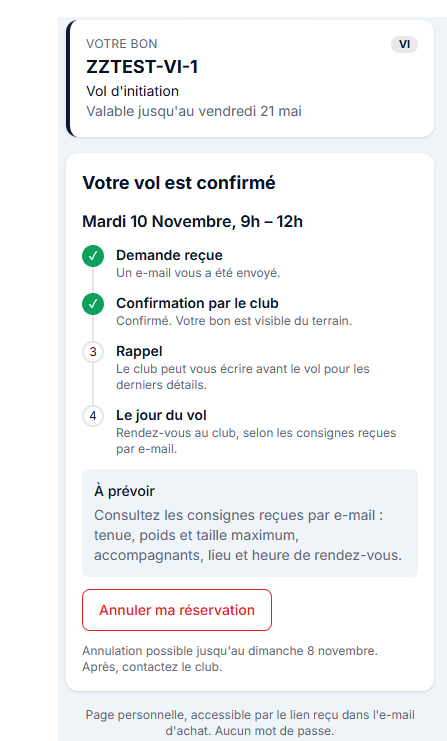
- Their voucher: type, deadline (with a warning when it approaches).
- The slots of the window, with places left ("Last place", "Full"). A slot too late for their voucher is greyed out.
- They tick "I have read the instructions… and I am fit to fly", then Send my request (slot not validated) or Confirm my booking (validated slot: immediate confirmation).
- Their page then shows the state: Request sent (answer at the latest 7 days before the flight), then Your flight is confirmed.
- They can withdraw their request or cancel their booking up to 48 h before; after that they call the club.
Only paid and valid vouchers can book. A HelloAsso voucher is considered paid as soon as it is received: the HelloAsso payout is a separate process. Group, course or non-bookable vouchers are planned by the club.
Common cases
| Situation | What to do |
|---|---|
| The buyer lost their link | Voucher envelope › E-mails › resend; or Revoke the link if the address was wrong |
| The slot is full but a buyer insists | Raise the maximum (Edit) or open an internal slot |
| Bad weather | Cancel the slot: vouchers are released and notified; they choose another date |
| A request stays unanswered | It is decided when the slot is validated, at the latest 7 days before |
| A voucher is in a slot but Planche does not see it | The slot is not validated yet (or the voucher is "pending"); Update Planche from the VI planning |
| The voucher expires before the wanted date | The buyer cannot pick it; extend the validity on the voucher if the club agrees |
The historical VI planning
The Planning VI tab (calendar) still exists for vouchers the club plans directly and for Update Planche. For any new voucher bookable online, work from Slots.